

a robot blog
Wednesday, October 16, 2013

Using Creme Brulee Blow torch for Porter Bot

Creme brulee blow torch melts wires. So let's switch to the hair dryer!

Tuesday, March 19, 2013
2-8 Basic Skeletal Following without SLAM
In parallel with the design and construction of the rocker-bogie prototype, I've been investigating navigation and mapping techniques using visual SLAM. SLAM (Simultaneous Localization and Mapping) is a technique for using landmarks and probability to:
I already had a Kinect, so I ordered the Turtlebot platform parts and purchased an iRobot Create separately. The Turtlebot chassis parts are very straightforward to put together; it took me less than an hour to put it all together. It comes with a custom build of ROS (Robot Operating System) to get jump-started. Instead of using ROS, I decided to use Microsoft Robotics Developer Studio because it has a very detailed API to make full use of the Kinect. It also has built-in support for communicating with the Create, so I thought it would go very smoothly. I had some difficulty working with Robotics Studio, but eventually managed to get a Service talking to both the Create and Kinect simultaneously.
For my first goal, I wanted to get skeleton data from the Kinect, find the distance to the hip-center joint of the person data, and then send commands to the Create to rotate so the person was centered. I'm won't post code at this point since the Robotics Studio code is largely throw-away so I can understand the process. I used my kids (Ethan, Zoe, and Phoebe) as subjects for the initial experiment, which you can see from the above video worked pretty well. The USB wires connecting the ICreate and Kinect to my laptop were pretty annoying, but I'll figure out some way to secure my laptop for further testing. On to SLAM mapping!
- discover landmarks and create a map of the robot's environment
- use the map and current sensor readings combined with probability to estimate the position and orientation of the robot on the map.

 |
| Turtlebot ready to roam |
I already had a Kinect, so I ordered the Turtlebot platform parts and purchased an iRobot Create separately. The Turtlebot chassis parts are very straightforward to put together; it took me less than an hour to put it all together. It comes with a custom build of ROS (Robot Operating System) to get jump-started. Instead of using ROS, I decided to use Microsoft Robotics Developer Studio because it has a very detailed API to make full use of the Kinect. It also has built-in support for communicating with the Create, so I thought it would go very smoothly. I had some difficulty working with Robotics Studio, but eventually managed to get a Service talking to both the Create and Kinect simultaneously.
For my first goal, I wanted to get skeleton data from the Kinect, find the distance to the hip-center joint of the person data, and then send commands to the Create to rotate so the person was centered. I'm won't post code at this point since the Robotics Studio code is largely throw-away so I can understand the process. I used my kids (Ethan, Zoe, and Phoebe) as subjects for the initial experiment, which you can see from the above video worked pretty well. The USB wires connecting the ICreate and Kinect to my laptop were pretty annoying, but I'll figure out some way to secure my laptop for further testing. On to SLAM mapping!
Tuesday, February 12, 2013
DC Robotics club meetup
My parents, wife and a few others had been pushing me recently to start looking for possible collaborators in developing Porterbot; especially considering my lack of expertise into the electrical and mechanical aspects of robotics development. I'm not sure if it's fate, total random chance, or God nudging me along, but as it so happens there was a Robotics Meetup group started in DC in late November. I had randomly landed on their website and had signed up, but couldn't get to any of their meetings until this January when I managed to go to a Robotics Hardware Primer workshop held by them in Adams Morgan.
It was very interesting; I picked up a lot of useful information about 3D printers and stepper motors. Also some good tips about reducing costs in ordering robot parts. I'm not sure if I'll meet anyone who is particularly interested in what I'm working on, but I do recommend the group to any aspiring roboticists in the Washington DC metro region.
It was very interesting; I picked up a lot of useful information about 3D printers and stepper motors. Also some good tips about reducing costs in ordering robot parts. I'm not sure if I'll meet anyone who is particularly interested in what I'm working on, but I do recommend the group to any aspiring roboticists in the Washington DC metro region.
3-4 Design basic stock-parts Rocker-bogie Chassis
Mechanical engineering is not a strong suit of mine, so I thought to start off with it would make sense to build the first prototype of porter bot as a stock parts bot, with no custom parts. The basic structure of the rocker bogie suspension was familiar to me from seeing some other projects posted on the web (here and here). I knew I wanted to design the bot in a 3D drawing or CAD program. After investigating some possible offerings, like SketchUp and SolidWorks, I settled on an open-source animation and modeling software package called Blender. It was free, had wide community support, and had some integrations with a physics engine called Bullet Physics. Eventually I want to simulate the porter bot in different physical environments to facilitate unit testing before going commercial, so that was a big selling point for me. Blender is not ideally suited for CAD modeling since it's aimed more at animation or game development tasks, but I thought it had a very good tool-set for being free and was far easier to install and manage than other open source modeling packages I've tried like Rhino.
After deciding on Blender, I had to figure out where to get robot stock parts. There are surprisingly few robotics parts vendors online; I ended up relying on McMaster Carr for general parts, Lynxmotion (now part of Robotshop) and their Servo Erector set, and ServoCity for the actual Hi-tec servos. I decided not to do a hardcore engineering analysis for the first prototype, but happened on a very helpful paper sponsored by the South Korean government that did a theoretical study on the best configuration for a rocker bogie suspension. I used their general recommendations and then used my best estimate of the dimensions of each of the stock parts online to design the robot in Blender.
After deciding on Blender, I had to figure out where to get robot stock parts. There are surprisingly few robotics parts vendors online; I ended up relying on McMaster Carr for general parts, Lynxmotion (now part of Robotshop) and their Servo Erector set, and ServoCity for the actual Hi-tec servos. I decided not to do a hardcore engineering analysis for the first prototype, but happened on a very helpful paper sponsored by the South Korean government that did a theoretical study on the best configuration for a rocker bogie suspension. I used their general recommendations and then used my best estimate of the dimensions of each of the stock parts online to design the robot in Blender.
 |
| Porterbot version 1.0 |
After ordering all the parts based off my Blender design, the total came to around $700 (not including the cost of the i.mx53 android brain), which is a lot steeper than I expected. I don't think the costs are intrinsically that high (after talking to some roboticists with more experience than me), so hopefully I can build the basic chassis and suspension for half that cost when I start looking at putting porter bot into full production. Stay tuned for details in the coming weeks as I start to make Porterbot version 1.0 a reality.
Monday, December 10, 2012
3-3. Basic Programming of the Android Controller/Camera Part III
Finally, we get to the actual image capture for the Android brain! After getting the default camera app working, my goal was to be able to get preview frame captures from the camera at a decent frame rate (at least a couple times a second) into a RGB pixel array. In order to achieve this goal, I needed to be able to write and deploy a new Android app to the i.MX53. Google has a lot of tools to help a developer test his Android app, but figuring it out for the i.MX53 took a bit of head-scratching. I basically followed these steps.
 |
| Micro USB port on the i.MX53 QSB |
- Connect a micro-USB to USB cable between the QSB and your development machine (this is very important because it won't work over the port you used for boot-loading).
- Install Android SDK on your development machine.
- Install the Google Android USB driver.
- Generate a configuration ini file by typing 'android update adb' in the <android-sdk>/tools directory. This file will be created in your .android directory and will be called adb_usb.ini. Open this file and enter the Freescale device ID '0x15a2' on the last line.
- Start up communication between the QSB and development machine by going to <android-sdk>/platform-tools and typing 'adb devices'. This will start up the Android Debugging Server and try to connect to the i.MX53. You should see the device listed.
Wednesday, November 28, 2012
3-3. Basic Programming of the Android Controller/Camera Part II
I haven't made great progress the last few weeks (quite a lot of activity and work and preparing for a Thanksgiving trip), but I'm on vacation now visiting Cleveland and Pittsburgh and thought I'd take some time to catch up the blog on my Android activities. After settling on the Freescale i.MX53 as my first prototype's brain, I've been working on setting it up with Android and getting some raw image data from a camera attached to it.
The i.MX53 comes with a Linux OS on a micro SD card (there is no hard drive on the board), but I had determined to try out Android, so I downloaded a port of Android made for the i.MX53 by Adeneo. I initially tried to repurpose the Linux OS that came with the i.MX53 to store the Android prebuilt image provided by Adeneo, but I had some difficulty getting the card to be recognized properly. The script for setting up the Android on a microSD is a Linux script, so I had to setup up a Linux VM on my Win7 laptop in order to get it to run. After a bit of fun mounting the SD reader on my laptop, I was able to finally load the image onto a new micro SD card.


The first thing I tried was to connect a mouse and keyboard to the i.MX53. I quickly discovered that without additional handshaking/configuration, the top USB port is the only one that consistently works. I got a spare USB hub I had in storage and was able to successfully connect multiple USB devices (mouse, keyboard, camera). Immediately, I tried connecting a custom one-off micro USB camera I had got from an security imaging company on the west coast. Basically, this camera adds a USB interface to the OV3640 camera by Omnivision.

It was expensive and for production I think I'll be forced to use a PCB, but I still wanted to see how small of a footprint the camera/brains combo could be. Unfortunately, I had some fun getting the camera working out of the box, so I was forced to use a Microsoft LifeCam instead. I started the default camera application and was able it working. Next up: Loading a custom camera app for getting raw camera data.
The i.MX53 comes with a Linux OS on a micro SD card (there is no hard drive on the board), but I had determined to try out Android, so I downloaded a port of Android made for the i.MX53 by Adeneo. I initially tried to repurpose the Linux OS that came with the i.MX53 to store the Android prebuilt image provided by Adeneo, but I had some difficulty getting the card to be recognized properly. The script for setting up the Android on a microSD is a Linux script, so I had to setup up a Linux VM on my Win7 laptop in order to get it to run. After a bit of fun mounting the SD reader on my laptop, I was able to finally load the image onto a new micro SD card.

The i.MX53 has a lot of interfaces for various devices, so its a bit of a learning curve to figure out which plug is used for what. In order to get android displayed on a VGA monitor, you need to first connect to it's DB9 port using a serial-USB cable and a serial connection program like Putty (choose serial connection with the following parameter: 115200bps, 8n1, no flow control). After figuring this out, I was able to bring up the U-boot command prompt for Android, and update the display to VGA.
U-Boot> setenv set_display run vgaI restarted and was able to now connect a regular monitor to the VGA port of the board and get Android displayed on my monitor.
U-Boot> save


It was expensive and for production I think I'll be forced to use a PCB, but I still wanted to see how small of a footprint the camera/brains combo could be. Unfortunately, I had some fun getting the camera working out of the box, so I was forced to use a Microsoft LifeCam instead. I started the default camera application and was able it working. Next up: Loading a custom camera app for getting raw camera data.
Tuesday, November 6, 2012
3-3. Basic Programming of the Android Controller/Camera
When I was trying to figure out what would be the brains of Porter, there were a few design considerations.
- Computer Vision processing - a 640x480 raw RGB image takes up about a MB of memory, so if I wanted to do some object recognition or tracking with it, that put most "microcontrollers" like the Arduino off-limits.
- Easily programmable - After poking around, I settled on Android as a platform OS, so I needed some hardware that had good support for Android.
- Small form factor - It needs to fit into a small form factor to provide flexibility for the chassis design.
 |
| Freescale wired up for use |
I finally have settled for my initial prototype on using Freescale's i.MX53 single board microprocessor (Their quick start kit costs $149). It's about the size of a smartphone, is beefy enough to handle the computer vision with 1GB of RAM, and has multiple USB ports. Freescale used to be Motorola semiconductor, so they have a lot of history and a good user community. Also, Adeneo makes a nice BSP port of Android for the i.MX53, with driver support for cameras, mice, etc.
There are a few other comparable boards on the market, most notably the PandaBoard ($161) and the Raspberry Pi ($35), which I might end up using for the final production robot, but I felt that at this point in development, Freescale's community and maturity of the Android port were enough to go with them.
 |
| i.MX53 hooked up to VGA monitor |
Why Android?
Some of you might question why I'm using Android as the platform OS for Porterbot. Aside from my desire to eventually create a custom OS for truly parallel and intuitive robot processing, Android attracts me because of Java. Why is Java important? Why not program in C++, or better yet, in some "hot" old language like Python or Ruby? Here are my personal and highly biased reasons.
- I've been using Java in my dayjob since 1997, so I'm inherently comfortable using it.
- Java gets a bad rap these days by programmers wanting to be more efficient but it was never intended to be the ultimate programming language. It was written by James Gosling for the same reason I would; because cross-compiling C++ code and makefiles with endless dependencies makes my skin crawl.
- I can create a robot DSL (domain specific language) in Groovy (a functional language wrapper around Java) and with a little bit of lifting, figure out how to make it work on Android.
- It would be nice to bring the robot community into the 21st century in a good way (not in a Nightmare on Elm Street way like Microsoft's Robot Developer Studio monster).
Monday, November 5, 2012
3-2. Research Motor Control Electronics and drive systems
in other words... How will Porter climb stairs?
Porter robot will use a rocker-bogie suspension, which involves 6 and sometimes 8 wheel configurations.

The motors are 6 wire motors, with 3 wires for controlling each set of cores. It was fairly straightforward hooking up the motors to the motor controller.
Phidgets provides a lot of code for interfacing with their driver, so I was able to use their Java API to test that each of the 4 motors were running correctly.
I was able to easily control the speed, ramp up the acceleration, test rotating in the opposite direction, etc. My only roadblock was discovering that the maximum velocity this specific controller was capable of handling was 383 half-steps a second.
With a step being 1.8 degrees, this was roughly a revolution a second, which with a 2 or 3-inch radius wheel is going to be too slow for production purposes.
I still intend to use these motors for my initial full prototype, but will have to look for a better alternative beyond that. Phidgets sells a bi-polar motor controller capable of more speed, but it only controls one motor and is pricey at roughly $70 bucks.
I did find a lot of useful information from the RepRap folks; stepper motors are used often in CNC milling machines for their precise control, so they have a plethora of information about stepper motor control theory.
I think using that information it would be reasonably achievable to develop an in-house motor controller board for about $10/motor.
Porter robot will use a rocker-bogie suspension, which involves 6 and sometimes 8 wheel configurations.

| Illustrations by Jorg Roth |
Perhaps more familiar is the rocker-bogie use in NASA's Mars Rover.
 |
| Courtesy of NASA JPL |
In order to drive these wheels to turn, you need to apply rotational torque using motors.
As mentioned in a previous blog, we use two types of motors in robotics - stepper and DC.
In any case, I went ahead and did some research on stepper motors. I found out that in order to control them, it's usually better to have a dedicated motor controller that will send the electrical pulses to the motor. The motor controller will then communicate with the main controller when the main controller determines that movement needs to take place.
For my initial Porter prototype I chose 4 Soyo Uni-polar 125 oz-inch stepper motors (from Robotshop) and a 4-motor Uni-polar motor controller (from Phidgets).
 |
| Phidget Motor Controller |
The motors are 6 wire motors, with 3 wires for controlling each set of cores. It was fairly straightforward hooking up the motors to the motor controller.
Phidgets provides a lot of code for interfacing with their driver, so I was able to use their Java API to test that each of the 4 motors were running correctly.
 |
| Soyo steppers connected to the Phidgets controller |
With a step being 1.8 degrees, this was roughly a revolution a second, which with a 2 or 3-inch radius wheel is going to be too slow for production purposes.
I still intend to use these motors for my initial full prototype, but will have to look for a better alternative beyond that. Phidgets sells a bi-polar motor controller capable of more speed, but it only controls one motor and is pricey at roughly $70 bucks.
I did find a lot of useful information from the RepRap folks; stepper motors are used often in CNC milling machines for their precise control, so they have a plethora of information about stepper motor control theory.
I think using that information it would be reasonably achievable to develop an in-house motor controller board for about $10/motor.
Saturday, October 27, 2012
Who's building Porter?
In case you are wondering, Dave is not your average geek. He is also a swing and now salsa dancer, scuba diver, runner, gourmet bread baker, permaculturist, dad to four under the age of nine and super humble guy (which is why I am writing this particular post without his permission).

So how in the world does he get time to do robot stuff???
Below is his secret planning trick based on SCRUM, a time-management method used to manage multiple software projects at once. At least that's what I think it does.
He also uses this nifty software called XMind alongside his Google Calendar which syncs with my own. This ensures that he is not building Porter on nights that he is supposed to make us a sushi dinner.
So who's building Porter? Dave is, and he wants you to join him on his path of robot discovery.
Hello robot enthusiasts out there who want to show and tell! We'd love to hear about any robot projects you have - big or small.

So how in the world does he get time to do robot stuff???
Below is his secret planning trick based on SCRUM, a time-management method used to manage multiple software projects at once. At least that's what I think it does.
 |
| This is our bedroom wall. |
He also uses this nifty software called XMind alongside his Google Calendar which syncs with my own. This ensures that he is not building Porter on nights that he is supposed to make us a sushi dinner.
So who's building Porter? Dave is, and he wants you to join him on his path of robot discovery.
Hello robot enthusiasts out there who want to show and tell! We'd love to hear about any robot projects you have - big or small.
Wednesday, October 24, 2012
Stepper and DC Motors? What's the diff?
For purposes of mobile robotics, there are basically 2 different types of motors;
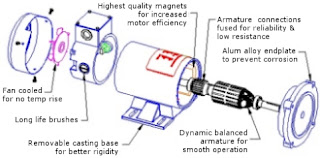 I'm no electrical engineer (as I will probably repeat many times in this blog), but after doing some research on the torque needed to drive the wheels (to calculate torque, you use the weight, angle of incline, and radius of drive wheel), I settled on using stepper motors.
- Stepper Motors - the stator windings are around the outside, there is a permanent magnet on the rotor. Electric current is repeatedly pulsed to windings to force the rotor to turn in steps.


- DC Motors - the magnets are on the outside and the electric windings are around the rotor. Electricity is applied to the core electromagnet.

Coming from a computer science background, it seemed desirable to be able to control stepper motors precisely using software.
Stepper motors also provide holding torque (torque when the motors are not turning), which I thought might be useful on stairs.
Tuesday, October 23, 2012
Porter Robot Blog begins!
I finally got around to kicking off this blog, the purpose of which is to document the development process I'm going through to create the Porter robot.

I got the idea for Porter as a commercial project as a way to learn practically how to build a robot, including how to design and build a chassis, drive and control the robot using electric motors, and map/navigate around a house using computer vision. I tend to be rather optimistic, so I thought this project was doable while still being pretty innovative.
I've come a long way, but still have a long way to go, so I thought it would be a good point to start tracking all the progress I'm making. Perhaps some of this information will be of use to a future roboteur. Enjoy!
| We don't quite know what Porter will look like yet. In the meantime, here's a "P" for Porter! |
Porter is a handy guy, meant to act as its namesake; carrying heavy items up and down stairs and all around the house on a wheeled platform.  |
| Currently, I am working on this Roomba to serve as our prototype wheeled platform. To be replaced soon... Porter learns his way around the house using camera vision and ultrasound sensors, and is rugged enough to carry heavy objects. |

| Currently, I am using the Kinnect to tinker with camera vision. |
I've come a long way, but still have a long way to go, so I thought it would be a good point to start tracking all the progress I'm making. Perhaps some of this information will be of use to a future roboteur. Enjoy!
|
| The current set-up |
Subscribe to:
Posts (Atom)